
No Code Required — End-to-End MT4/MT5 Compiling
MT4 & MT5 EA Licensing Without Building Your Own Backend
Protect Expert Advisors, indicators, scripts and trading tools with account-based licensing, device controls, expiration dates and instant revocation.
Free plan included — 1 product, 1 license key, no credit card.
CUSTOMER
James Carter
↓
LICENSE
LF-EA-X9K2...
↓
MT5 ACCOUNT
50192832
↓
DEVICE
DESKTOP-91AF...
↓
Validation Successful
Last verified: 14 seconds ago
Selling an EA Shouldn't Mean Giving It Away.
One customer shares your software with a Discord group. Five people install it. Your revenue stays the same. LicenseFort gives every customer their own controlled license — reducing casual sharing and unauthorised reuse.
Without LicenseFort
1 Sale
↓
8 Installations
↓
£79 Revenue
With LicenseFort
8 Users
↓
8 Licenses
↓
8 Sales
How It Actually Works
No manual API integration for MT4/MT5 — the Protect Software wizard does steps 1 and 2 for you.
- 1
Upload your EA or indicator to the Protect Software wizard and pick MT4 or MT5.
- 2
LicenseFort inserts the license check and compiles it for you — download the ready-to-ship file.
- 3
Generate a license key, optionally bound to a specific MT4/MT5 account, device or expiry date.
- 4
Send the compiled file and the license key to your customer.
- 5
Your customer enters the key once, in the EA's Inputs tab, when they attach it to a chart.
- 6
LicenseFort validates automatically from then on — no server for you to run.
- 7
Revoke or let a license expire, and access is denied on the customer's very next check.
Watch the Wizard Protect a Real File
Every screenshot below is the actual Protect Software wizard, running — not a mockup. This is exactly what you'll see after you sign up.
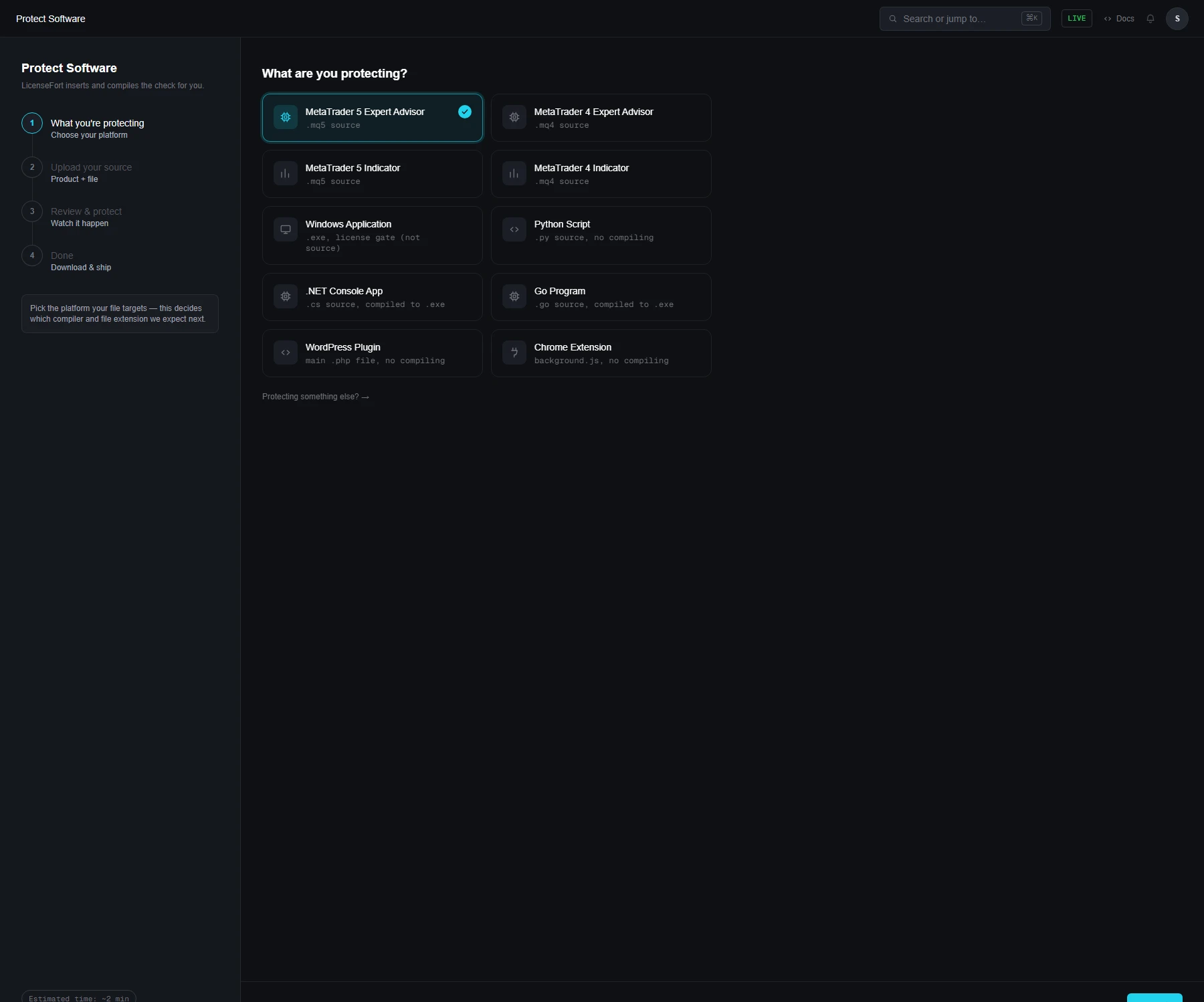
Step 1 of 6
Pick your platform
MT4/MT5 (EA, indicator or script), a Windows .exe, Python, .NET, Go, a WordPress plugin, or a Chrome extension. This decides which compiler — if any — and file type the wizard expects next.
Attention! MetaTrader blocks outbound requests by default. The first time a compiled EA runs, it may prompt for your LicenseFort validation URL to be added under Tools → Options → Expert Advisors → "Allow WebRequest for listed URL". It's a one-time setting per install — the EA's own error message walks through it if it's missed. There's a plain-language version of this you can send your own customers at /help/license-check-failed.
Don't Take Our Word For It
Paste your own OnInit() — or any EA/indicator/script source — and watch the exact license-check code get generated live, by the same engine the wizard above runs.
Nothing is saved — this runs the real injection engine and returns the diff. Not stored, not shared.
Prefer to Integrate It Yourself?
For Linux/Mac software, a custom backend, or anything outside the wizard's platform list, call LicenseFort's validation endpoint directly with an account API key — the same endpoint the wizard uses under the hood, minus the automatic code insertion and compiling. Building for Python, .NET, Go, PHP/WordPress or a Chrome extension? Those already get the same no-code wizard as MT4/MT5 above, plus a packaged SDK if you'd rather wire it up by hand — see /sdks.
Prefer no code at all? Python, .NET, Go, PHP/WordPress and Chrome extensions get the same wizard as MT4/MT5 above — or grab a packaged SDK instead of raw HTTP — see /sdks.
Replace YOUR_LICENSEFORT_URL and the API key below with the real values from Dashboard → API Keys.
var client = new HttpClient();
client.DefaultRequestHeaders.Authorization =
    new AuthenticationHeaderValue("Bearer", "sk_live_YOUR_API_KEY");

var payload = new { productId, licenseKey, hwid = GetHardwareId() };
var res = await client.PostAsJsonAsync(
    "https://YOUR_LICENSEFORT_URL/api/v1/license/validate", payload);

var result = await res.Content.ReadFromJsonAsync<ValidateResponse>();
if (!result.Valid) {
    // deny access — show result.Error to help support, not the end user
}
Get your real endpoint URL and API key from Dashboard → API Keys once you're signed in.